Summary created by Smart Answers AI
In summary:
- Microsoft’s PowerToys 0.99 update introduces Power Display and Grab and Move features that significantly improve multi-monitor workflow management.
- Power Display allows users to control external monitor brightness, contrast, and sound directly from Windows instead of using physical buttons, though it currently has limitations with Thunderbolt and USB-C connections.
- PCWorld reports that Grab and Move simplifies window manipulation by making entire windows clickable for dragging and resizing using Alt + Click commands.
Microsoft’s collection of free PowerToys apps shines when it identifies the things you hate about Windows computing, and solves them with a keystroke. April’s 0.99 update adds Power Display and Grab And Move, which do just that.
Both seem fantastically useful in their own way. PowerDisplay helps eliminate the need to fumble around with your monitor’s physical controls by moving them to Windows, and Grab and Move helps solve one consequence of too many tabs: where do you click to move the window as a whole?
They’re not perfect, as my testing revealed. But Microsoft is already issuing point updates to address early bugs, and I can hope that it can solve the issue I found with Power Display, too.
Remember, PowerToys is Microsoft’s collection of free Windows utilities, which have been around for several years. The PowerToys installer can be downloaded from the Microsoft Store or via the Windows Command Line’s winget command (winget install –id Microsoft.PowerToys –source winget). Even if you own PowerToys already, you may need to manually use the PowerToys interface to update it. (I did.) Even then, you’ll need to manually toggle on both of these new utilities, or search for them within the PowerToys search box at the top of the launcher.
Power Display
Can we just agree that monitor interfaces generally stink? Whether it’s a series of buttons underneath your display or a small thumbstick that you have to blindly navigate, simple adjustments mean trying to figure out how to navigate menus as well as how to register an input before the whole on-screen display times out and vanishes. PowerDisplay simply moves most of this to Windows.
Until now, working with my laptop attached to a pair of external displays has allowed me to open the Windows 11 Settings menu, then navigating to System > Display to adjust my laptop’s brightness — something that I can do with my laptop’s keyboard controls, too. Anything else? For my external displays, it’s back to fumbling around underneath the display itself.
Once enabled, Power Display opens a small flyout window after manually launching it or using the default (and changeable) Win + CTRL + UpArrow + D shortcut. On top, the flyout shows your built-in display (if you’re working on a laptop), with just the brightness adjustment. On the bottom, it shows the other attached displays, with adjustable controls: brightness, contrast, and sound, if applicable.
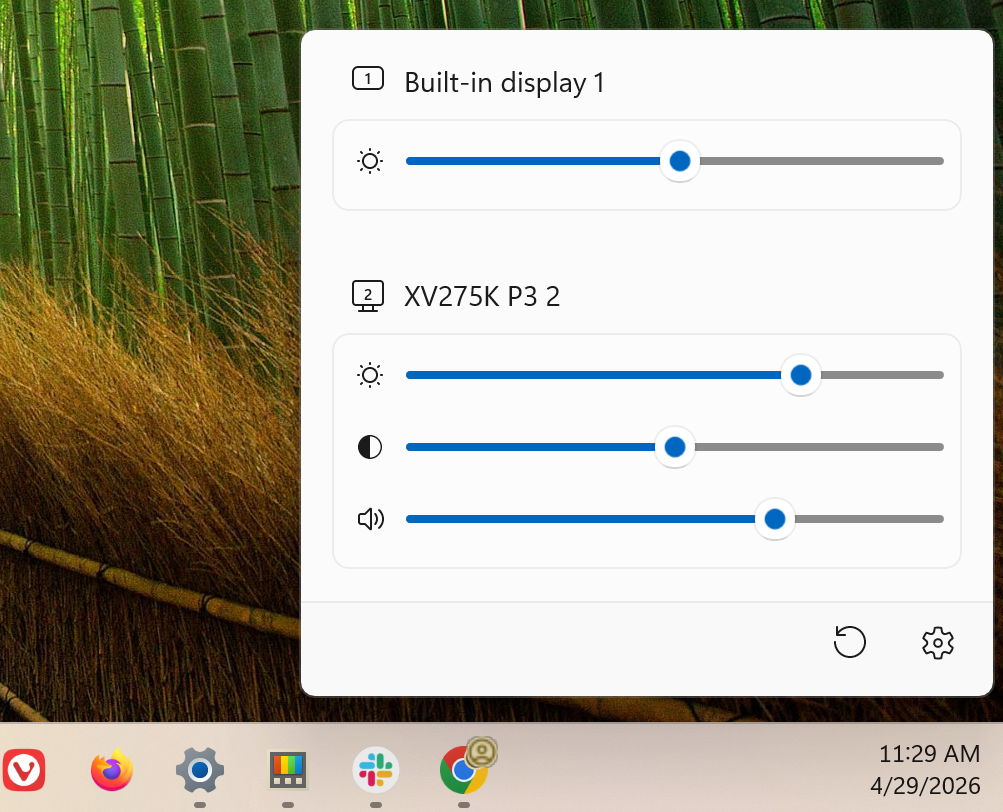
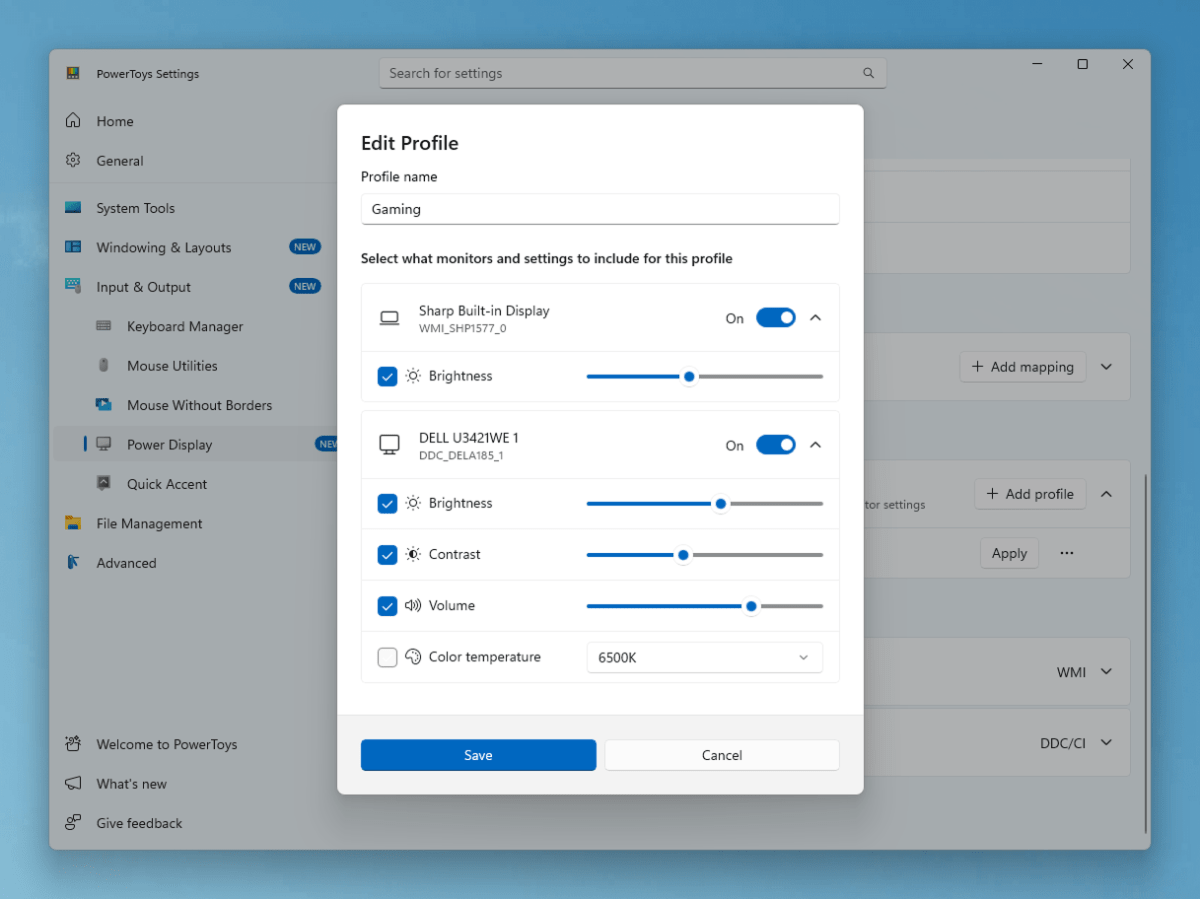
Each display is identified with a number, referring back to the System > Display menu within Windows settings. Those settings must still be used to adjust some features, such as the relative position of each display, the refresh rate, toggling on and off HDR features, and so on. The idea, however, is that it places the most frequently-accessed controls right at your fingertips. You can even create profiles and assign them to each display.
The feature set will be in part determined by Microsoft, and in part due to the display maker itself. For example, Microsoft’s example indicates that the color temperature could be adjusted, and that option wasn’t available on my screen. Neither did it show the power state or the interface.
Microsoft
However, that leads into one shortcoming: Windows and Power Display couldn’t see “through” an external I/O device like my Thunderbolt dock to my external displays. Likewise, the app couldn’t detect my displays when I directly connected a USB-C (Thunderbolt) cable directly from my PC to the dock. Only after I connected the display via an ordinary HDMI cable, directly to my PC, could Power Display see and control its capabilities. (Note that, even with Power Display up and running, Windows itself displayed information properly on my displays; it was just the Power Display app itself that couldn’t work.)
I’m going to assume that this is an early bug, and will be worked out in the future. Either way, it’s an auspicious start.
Grab and Move
Grab and Move may actually be the superior app, as it’s so simple and fundamental.
For decades, Windows windows have been “moved” by grabbing the top title bar. But look at your browser window, for example: more and more functionality is being jammed in. Tabs! Vertical tab controls! Icons of all types! If you have a crowded window full of tabs snapped to a portion of your screen, it can be hard to find that small sliver of clickable screen space that’s usually up lurking somewhere in the right-hand corner. (And just wait until Windows allows you to move your taskbar to the top of the screen, too.)
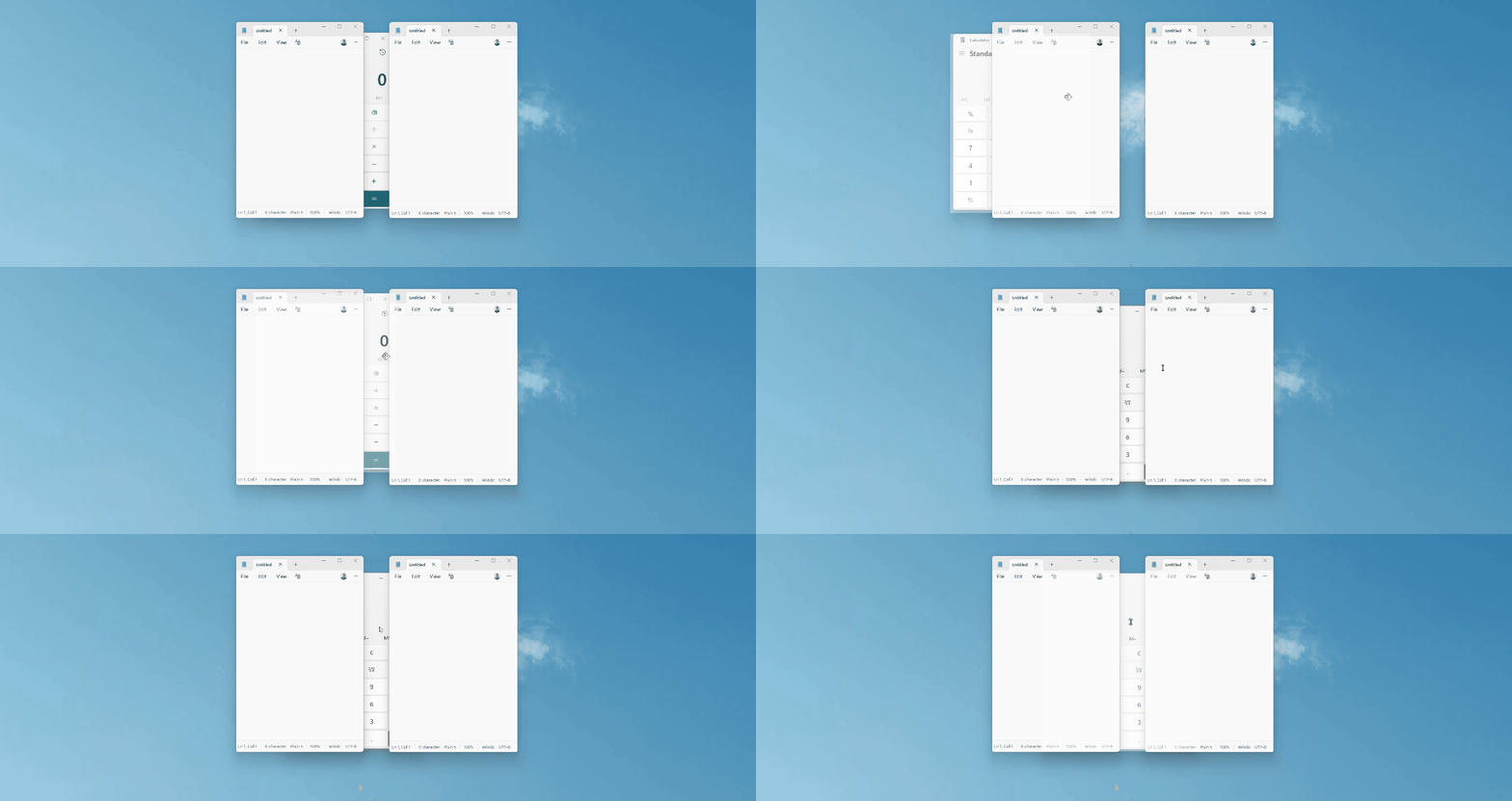
Grab and Move changes all that. Now, the entire window is clickable.
Microsoft
For now, Microsoft is using the Alt button as the trigger: Alt + LEFTCLICK drags the window, while Alt + RIGHTCLICK resizes it, right where it is. So far, both functions seemed to work perfectly on my screen, making it far easier to navigate through a cluttered mess of windows and apps if you unexpectedly have to change tasks.
Microsoft also tightened up the Command Palette dock that it launched in March, with some advanced controls for pinning a command, too.
PowerToys has evolved into its own suite of utility applications, which over time has become more consolidated inside an updated interface. (The 0.99 version number seems like a 1.0 stable release is near!) As always, it’s one of Microsoft’s most useful collections of apps, and worth a download for its existing capabilities alone. The new updates make it significantly more powerful.