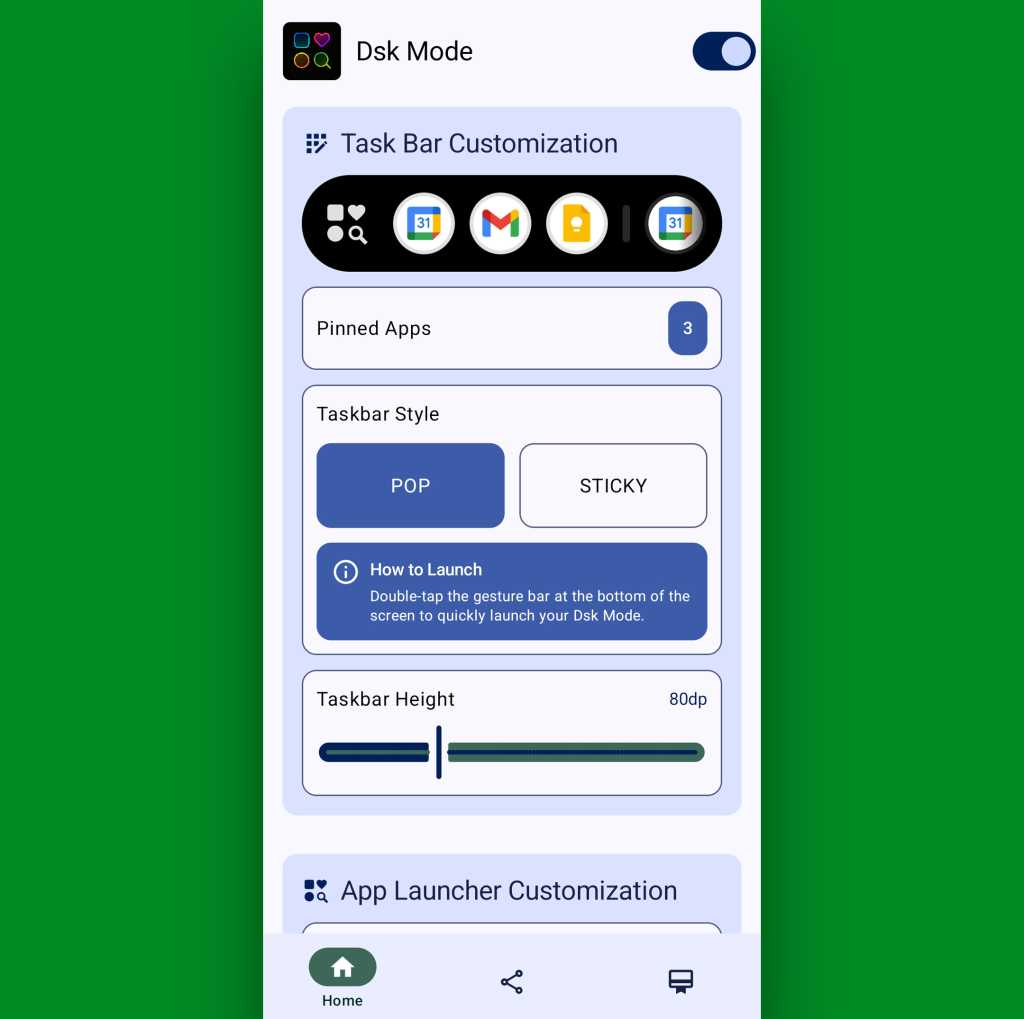
- You can tap the “Pinned Apps” line to, y’know, pin apps to the taskbar and make ’em always visible and easy to access (in addition to just seeing recently used apps, as the taskbar displays by default).
- You can change the “Taskbar Style” setting from “Pop” to “Sticky” if you want your taskbar to be permanently visible instead of being summoned by that bottom-screen tapping action.
- And you can play around with the “Taskbar Height” setting to adjust exactly how large or small the taskbar is — something that’s well worth messing around with to get it how you like (and avoid having it be weirdly small and impossible to see without excessive squinting, as I had to do upon my own initial setup).
JR Raphael, Foundry
Beyond that, if you scroll down a little within the Dsk Mode configuration interface, you’ll see settings for adjusting exactly how the taskbar’s app drawer looks and works as well as for tweaking your taskbar’s visual appearance and a couple other pertinent possibilities.
There really isn’t much more to it, and you’ll probably never need to come back into the app’s settings again (though if you ever decide you aren’t into the taskbar anymore for whatever reason, you can always go back in to flip the toggle at the top into the off position — or you can just uninstall it entirely).
The one other thing worth noting is the final tab at the bottom of Dsk Mode’s configuration interface, which contains a saucy little “Support” button. If you tap that, then tap the toggle at the top of the screen that comes up next to the words “This App,” you’ll find options for upgrading to the app’s premium version — at a cost of five bucks a year or, most sensibly, $10 for a lifetime, cross-device license.