In the era of privacy becoming almost nonexistent, we need to take every measure we can to reclaim some sense of security. Naturally, it’s not as convenient as it should be to protect yourself — we have traded convenience for privacy after all. But most operating systems have features, although buried beneath submenus, to make your device and data more secure.
If you’re a macOS user, there are few settings you should enable to enhance your security — here are some of them.
Enable macOS Firewall and Stealth Mode
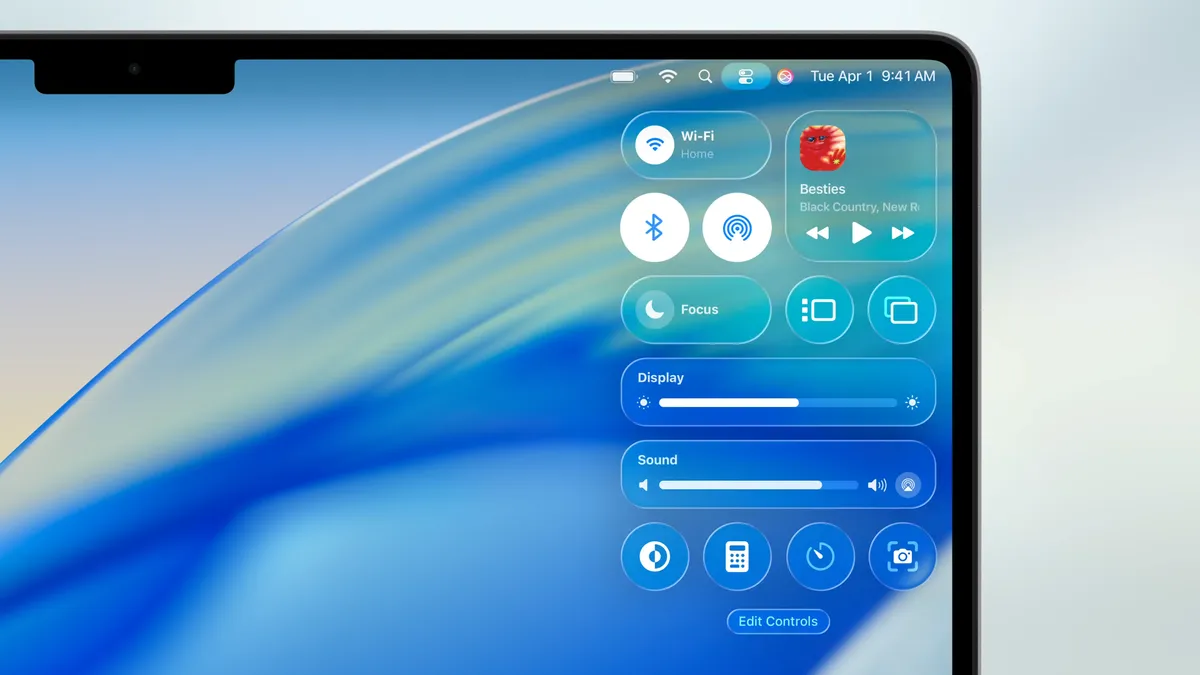
Connecting to new Wi-Fi? I highly recommend enabling Firewall. It’s not necessarily difficult to find, but it is disabled by default. That’s because a fresh install of macOS doesn’t have any services with open ports to be exploited.
macOS does have a built-in security feature called Gatekeeper, which ensures only trusted software runs on your Mac, but it’s not a network security tool, so incoming ports can still be exploited. This is especially the case if you’re using public Wi-Fi. In which case, enabling Firewall will prevent unwanted access from malicious actors.
To activate Firewall, navigate to the Apple logo > System Settings > Network > Firewall. Firewall should still allow incoming connections from trusted sources like Zoom or Spotify. However, in rare cases, you could run into connectivity issues with certain software.
You should also find Stealth Mode in the same section. This will make your Mac invisible when you’re on public networks.
Activate FileVault

If you feel like your Mac is ever at risk of being lost or stolen, then you should activate FileVault. This is a disk encryption that scrambles your data for anyone trying to read your SSD, in or out of the Mac. In order to enable this, navigate to System Settings > Privacy & Security > FileVault and turn it on.
From there, you can choose to back up your recovery key to your iCloud account or produce a local recovery key, so you can physically jot it down and store it somewhere inaccessible to other people. I recommend the latter if you’re worried about someone potentially breaching your iCloud account.
Go into Lockdown Mode

This may be an intense measure to take, but setting your Mac to Lockdown Mode will strengthen the overall security of your device. It blocks FaceTime calls from unknown contacts, Just-In-Time JavaScript compilations in Safari, and even some file attachments in the Messages app.
This ensures that both click and zero-click exploits won’t execute and infect your system (no defense is perfect, though, so don’t start randomly clicking things). Lockdown Mode also stops USB devices from connecting to your Mac while it’s locked.
You can enable Lockdown Mode by going to System Settings > Privacy & Security > Lockdown Mode.
It’s worth nothing that there is a huge trade off when using Lockdown Mode. Naturally, you might not receive that call or message attachment you’re expecting from a known person on an unknown number. You won’t be able to see link previews. Services like Google Sheets or Canva might slow down or even break. Some UI and font elements might also break, making it difficult if not impossible to navigate certain webpages. You can work around this, however, by excluding trusted sites from Lockdown Mode in the Safari settings.
Bottom line
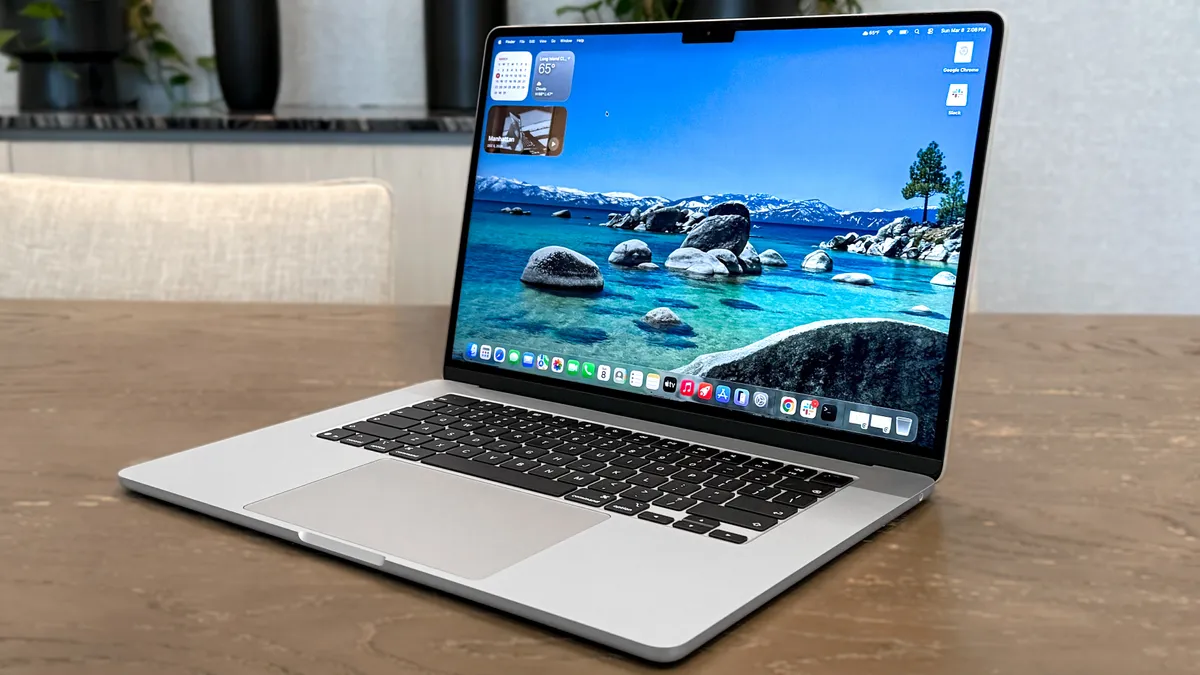
While some of the measures may seem extreme, I highly recommend it for people who travel. You never know when you could be exposed, both physically or digitally, and it’s better to be safe than sorry, especially if you’re in a place far from home.
Also, if you’re looking for a feature to disable instead, I recommend turning off the Safari setting that allows files to open after downloading. Navigate to Safari > Settings > General and disable Open safe files after downloading. The last thing you need is a file on some random website automatically downloading and sneaking past Safari’s safety feature to then open on your device and wreak havoc.
Follow Tom’s Guide on Google News and add us as a preferred source to get our up-to-date news, analysis, and reviews in your feeds. Subscribe to Tom’s Guide on YouTube and follow us on TikTok.
