In a span of just one week, I have built a full-fledged Android app for my Galaxy Z Fold 8 foldable phone, three Mac apps, and an iPhone app. And here’s the fun part. The entire journey of creating these apps actually started on a phone, jumped to my MacBook Neo, compiled just fine, and ran flawlessly, without making me want to tear my hair off. The latest example?
It built my calendar-clipboard hybrid app in Terminal within 20 seconds, and an on-device transcription app with a retro look in roughly 15 seconds. I used to think building desktop software would have me burning the midnight oil. The MacBook Neo did it in less time than I can pour myself a can of soda and take the first sip.
A power(ful)revelation
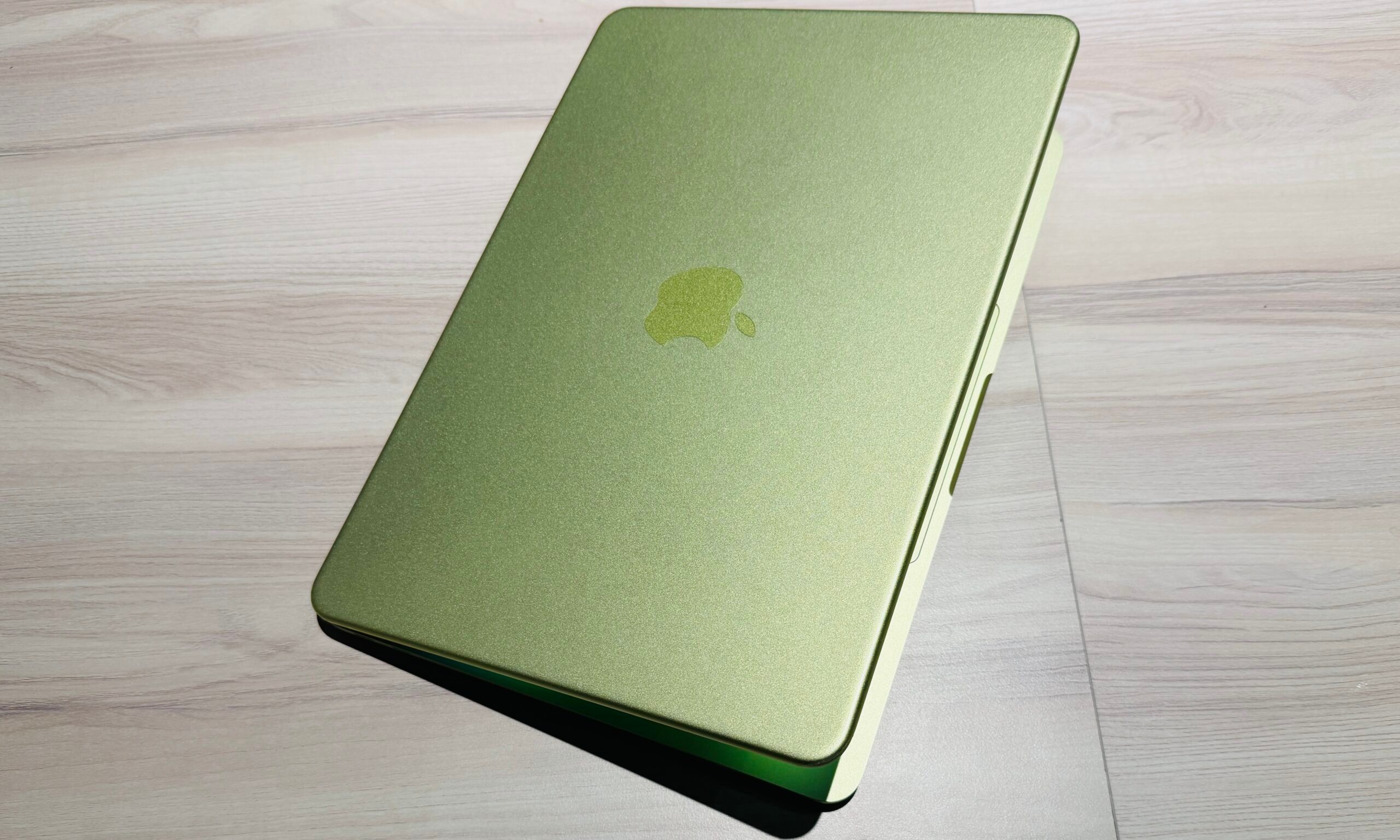
It was an eye-opener for me because I used to think that developing apps requires beefy systems that cost a fortune. I am surrounded by friends who are into app and software development, and every time I discuss hardware with them, they usually set the baseline at laptops with a beefy chip, a discrete graphics engine, or a high-end MacBook Pro.
So it came as a huge surprise to see my MacBook Neo handle Xcode and Android Studio without turning into a hot pan, stalling, or showing me the dreaded spinning wheel. Now, I’ve been using Apple’s laptop since its launch week, and in that spell, I have given it the usual review treatment, running a variety of benchmarks, playing casual games, going through my Netflix and Apple Arcade library, and running more Chrome tabs than is socially acceptable.
Now, I’m not telling you to rejoice in financial frenzy. I won’t recommend that you rely entirely on the MacBook Neo for development if you need it to earn your daily bread. But the fact that this laptop is powered by a processor you see in an iPhone, has half the RAM capacity compared to the Android flagship in my hand, and comes packaged as a fanless kit is no mean feat.
Build fast, run smooth
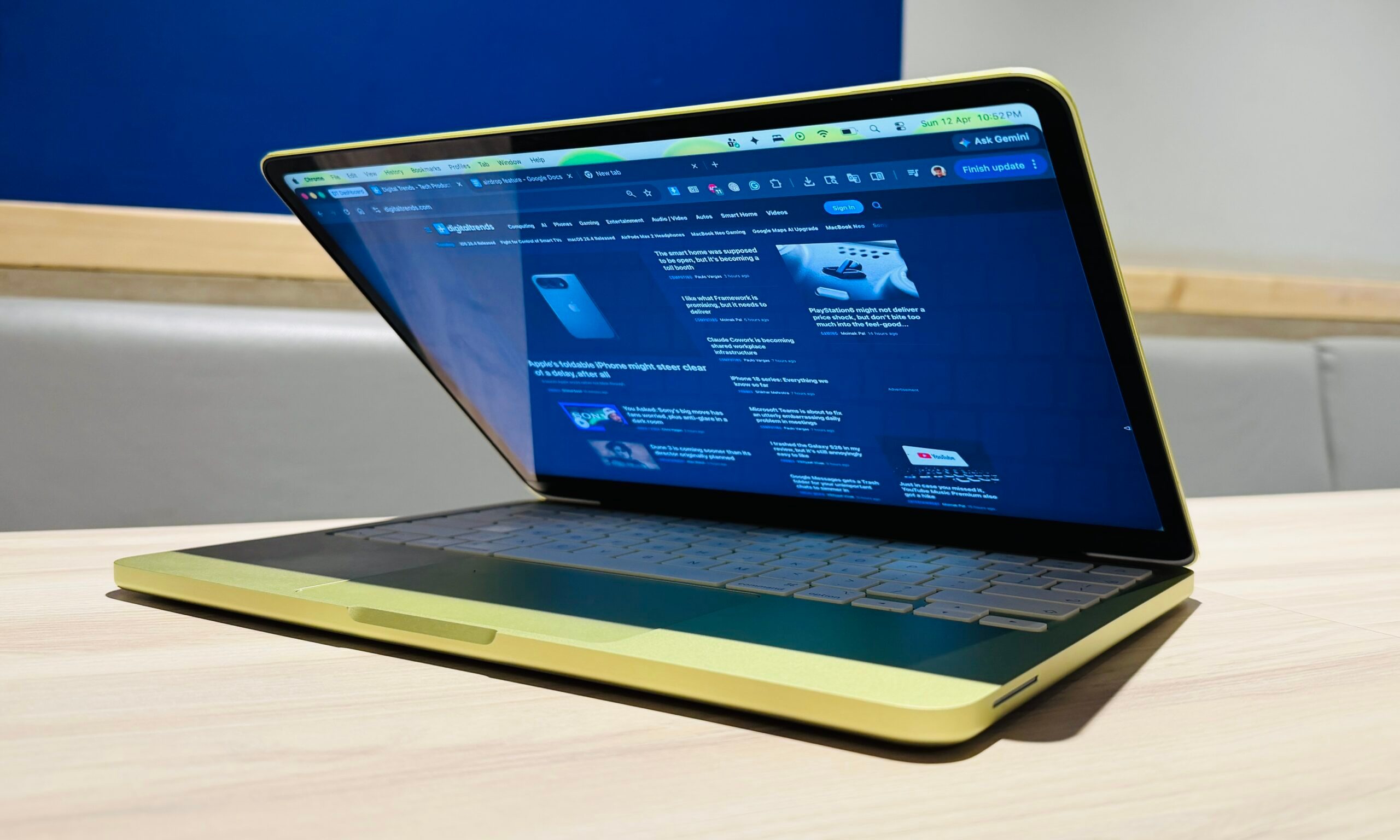
I rely mostly on Claude — and specifically the Opus 5.5 model — to do the code writing and bug squashing part for me. I assume, at this stage, you might be wondering what kind of apps I actually built, and if they’re absolutely barebones? Well, these are apps that I am using extensively, and they are definitely not barebones by any stretch of the imagination.
The first one is called Thready. It’s a menu bar app that essentially looks like two threads with photo cards hanging from each. The first thread is dedicated to calendar entries, and the second thread is for clipboard items. Anything that I copy or any image that I drag and drop, hangs like a dynamic card on the first thread. The second one is synced with my Apple and Google calendars. It automatically pulls entries from these calendar apps and lists them as a beautiful card, complete with a timer in tow.
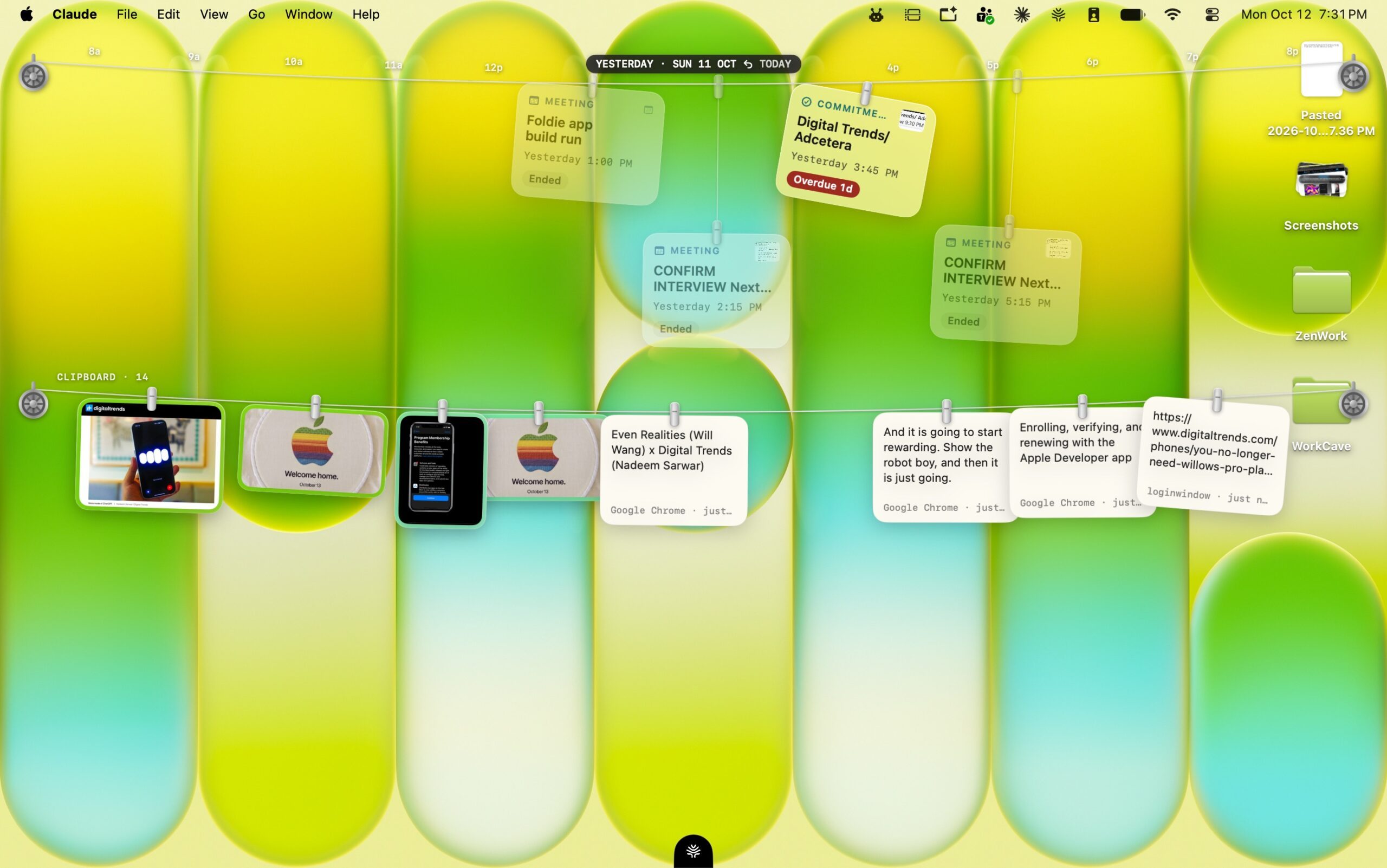
Sounds basic, right? Well, I don’t have to create cards manually. Even if I just copy the date or a snapshot of an email conversation about setting up a meeting, I merely drag that screenshot onto the calendar thread. That text — or image-heavy screenshot — is automatically turned into a card with the required event details and saved in the background to my synced calendars. How?
Well, AI, of course. As soon as I drop a screenshot on the calendar thread, it is automatically analyzed by an on-device AI engine. The details are extracted, seamlessly added to my Apple calendar, and appear in the pre-specified design format on the event card dangling by a thread. There’s even a pulley at the end of each thread that I can click on to see calendar entries in the coming days, or those that have passed.
What you see above is an Android app I built fully on my MacBook Neo. The third app was an even more ambitious idea. I built it as an on-device dictation app, so that I could replace Willow Voice and Wispr Flow. The app, which I call Murmur, uses an on-device AI model so that everything I narrate — and get converted into text form — stays on my Mac and never touches a cloud server.
A cute powerhouse
The app works fully offline, and the best part is that it works almost as flawlessly as any other voice dictation app that I have tried so far. It even uses Apple Intelligence to automatically remove filler words like ums and uhs, while fixing grammar mistakes, adding commas, full stops, and making other corrections, so that whatever I have spoken is transcribed and pasted as a refined passage.
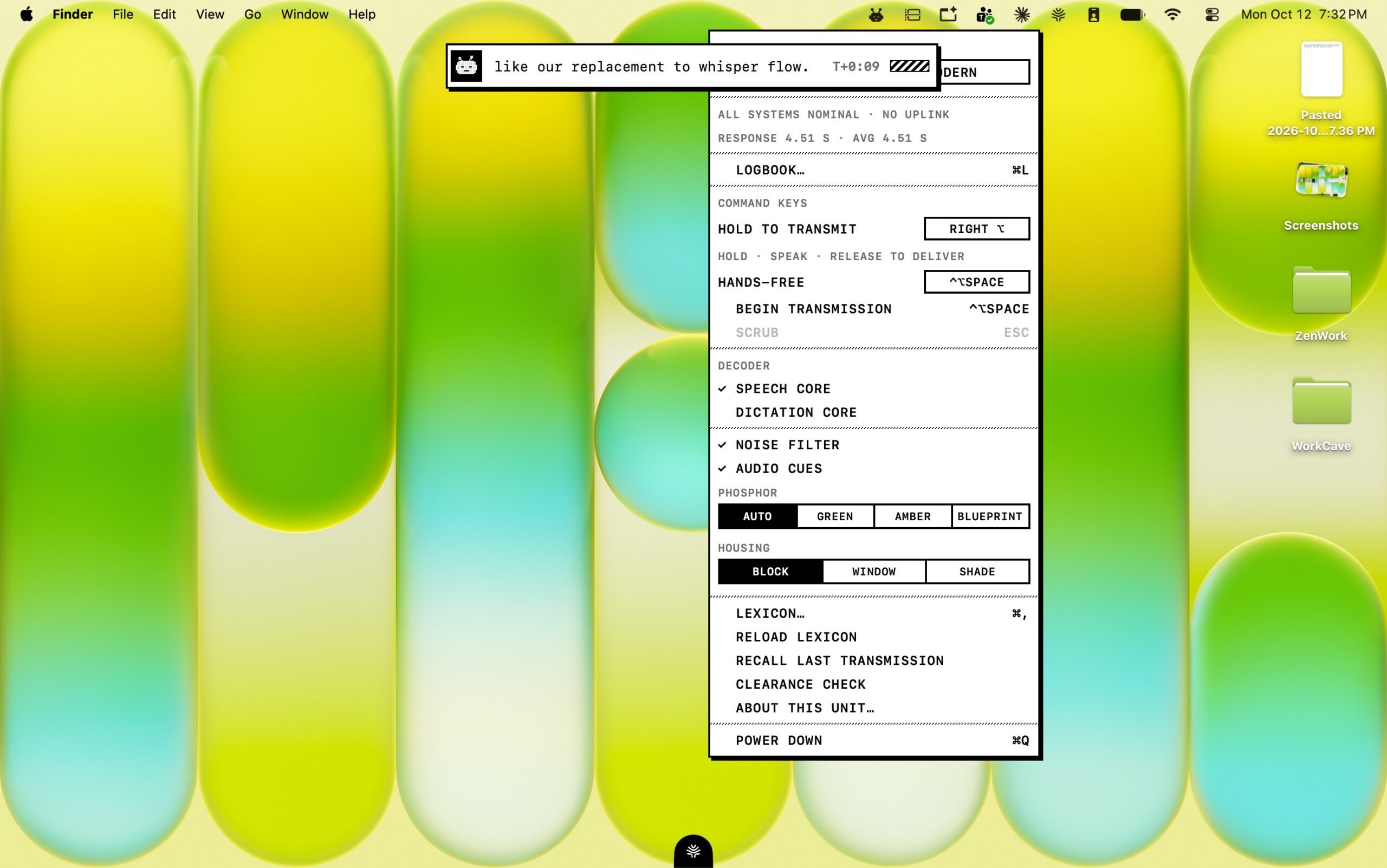
And here’s the best part: the error rate is less than 2%. The app also allows me to add my own vocabulary, so that whatever specific stylizations I need are saved once and applied intelligently in the future. The app feels like native software offered by Apple. But I jazzed it up a little bit. I gave it a UI makeover to look like a piece of retro software, with live animations and its own notes directory that oozes late 90s design aesthetics.
Once I had finalized the code and went past the visual prototyping stage, I had apprehensions that I’d have to migrate this project from my MacBook Neo to my MacBook Pro. But out of curiosity, I thought, why not try it? So I fired up Terminal, dragged the Murmur app folder, and hit build.
To my surprise, the app sprang into action in less than 20 seconds without any errors or crashes. The latency is barely over a second, and that absolutely astonished me. But the fact that it all happened on a MacBook Neo, a laptop with a mobile chip at its heart, is what truly baffled me. In a good way, of course.
I’m going to push the MacBook Neo to build apps for myself using plenty of on-device AI pizzazz and test its limits. So far, this machine has utterly surprised me by building apps without breaking a sweat, and running them with all the on-device AI load intact sans a stutter.